· Guides
Here is a step by step guide for buying, installing, testing and using a Metatrader 5 Expert Advisor (Robot, Bot are whatever):
First make sure that you have the necessary funds required for your purchase in your MQL5 account, its always easier to pay with your MQL5 balance, than using a credit card during the buying procedure.
Find the Expert Advisor that you want in the MQL5.com website and open its product page.
Click the Buy or Rent button to continue with your purchase.
[

](https://c.mql5.com/3/351/MT5_EXPERT_INSTRUCTIONS-1.png)

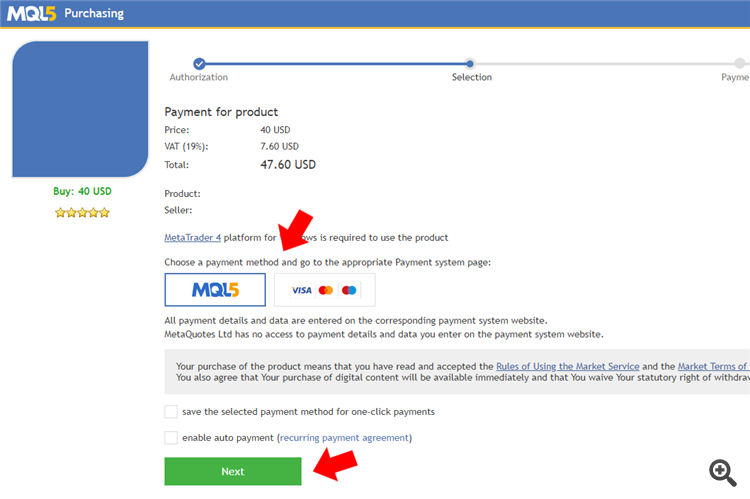
- Choose the payment method and click the green Next button to continue with your payment.
[
](https://c.mql5.com/3/351/2.png)

After your payment is completed, you will need to open your MT5 terminal in order to download and install your MT5 Expert Advisor.
When you open your MT5 terminal, you must make sure that your are logged into your MQL5 account with your MQL5 account login and NOT with your email, facebook or any other. For example my login is the last part of my profile url, in my case: eleanna74, the last part of: https://www.mql5.com/en/users/vitalvasa/seller
So, open the MT5 >> Tools >> Options >> Community tab and make sure you are logged in with your MQL5 account login.
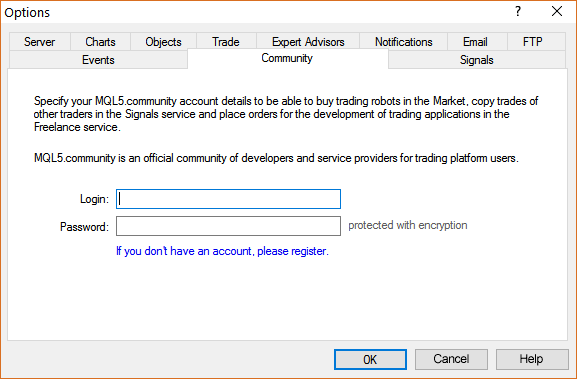
- Then go in the Navigator window and click the Market folder and then Purchases. Then your Purchases window opens on the right with all your purchases and you can click the Install button on the right for the product you've just purchased.

Notice: If you can't see your purchase when you click the Purchased option, check the below mentioned issues:
Make sure that:
that you have Internet Explorer or Microsoft Edge latest version installed on your computer or VPS
that you are using the latest build of MetaTrader 5
that you are logged into your MQL5 account in MT5 >> Tools >> Options >> Community tab, using your login - NOT your email
that your MQL5 account password is less than 10 characters (if your password is 10 or more characters - change MQL5 account password here) In case you still don't see the product on the list of your purchases in the terminal, try the following:
Close ALL your MetaTrader terminals
Go to C:\Users{user name}\AppData\Roaming\MetaQuotes\Terminal\Community
Delete all files starting from mql4.market.* and mql5.market.*
Open the MetaTrader terminal
Try to install your product again
- After your Expert Advisor is installed you may want to test it. Go and click on MT5 >> View >> Strategy Tester. The Strategy Tester opens below and you need to click on the Expert Advisor selector on the right side of the window first and then from the Market options, you click on the one you've just purchased in order to test it.
[

](https://c.mql5.com/3/351/4__2.png)

- Then click on the Inputs tab below to adjust the Expert Advisor's settings or load any set file that you've been provided by the seller, in order to test it. Then click the Settings tab and adjust the time period for your test, choose the desired timeframe and click the green Start button on the bottom right side of the Tester window.
[

](https://c.mql5.com/3/351/5__2.png)

- After you've experimented enough with your Expert Advisor's settings and you've found the correct settings for your strategy, you may want to put it to work. You are now ready to trade on a demo or live account with it. So, open the appropriate chart of the symbol that you want to trade with your Expert Advisor, choose the correct timeframe and then from the left side of your MT5 terminal, in the Navigator window, find your purchased Expert Advisor from within the Market options and drag it onto the chart (or double click it).
[

](https://c.mql5.com/3/351/6__2.png)

- The Expert Advisor's settings window will open. There you click the Allow modifications of Signals settings and Allow Algo Trading option in the Common tab and click OK.

- Then you go onto the Inputs tab and adjust your Expert Advisor's settings or Load any set file, you've been provided by the seller, by clicking the Load button in the bottom. After you've finished adjusting or loading your settings, click the OK button.

- After you've closed the Expert Advisor's window, you will see that there is a red sign on the top right of your chart. That means that your EA does not trade yet. You need to click the Auto Trading button and instantly the sign will turn green. Now your Expert Advisor trades on your demo or live account.
[

](https://c.mql5.com/3/351/9__2.png)

The final critical step is ensuring rock-solid 24/7 trading by using a VPS server—mandatory for every EA to prevent power failures, internet drops, or PC shutdowns that could cause missed trades and lost profits.
Why VPS is Non-Negotiable
Without VPS, your Expert Advisor stops dead when your computer sleeps, crashes during blackouts, or lags on spotty WiFi—catastrophic during volatile XAUUSD spikes or JPY news dumps, turning winners into losers. MQL5 VPS hosts in the cloud directly from your terminal: zero latency, auto-sync, non-stop operation for all Quantum Lab EAs like New Player, Synthetic Metal, or AI Quantum.
Top VPS Recommendation
Сhoose the best: MyForexVPS — optimized for MT5 EAs with ultra-low ping, affiliate discounts, and seamless hedging/ECN support.